Appearance
MTrec Servers
1. Machines
| Machine Name | CPU | Memory | GPU | SSD | HDD | Venue | Cloudflare Web Terminal |
|---|---|---|---|---|---|---|---|
| mtrec-4090d-1 | 7900X3D | 128G | 4090D 24G * 2 | 4TB | 8TB | UST Room 4208 | mtrec-4090d-1.mtrec.xyz |
| mtrec-4090d-2 | UST Room 4208 | mtrec-4090d-2.mtrec.xyz | |||||
| mtrec-4090d-3 | UST Room 4208 | mtrec-4090d-3.mtrec.xyz |
2. Storage
Your $HOME directory is located on the SSD, while your data directory /data/<username> resides on the HDD. Please move any files (such as code, data, or checkpoints) that are inactive for an extended period to the HDD to help manage SSD space efficiently.
Superusers can check disk usage for all users with the following command:
bash
sudo du -h --max-depth 1 /homeYou can check your own usage by running:
bash
du -sh $HOMEWhen the SSD is nearing full capacity, major users will be asked to archive their data. As a courtesy, please make it a habit to periodically clean up and archive your own files.
3. Create Account
To create a new account, please contact a superuser:
bash
sudo adduser <username>This command will create both the home directory and the data directory for the user. Please choose a username that is clear and meaningful to everyone. Avoid generic names such as "urop", "fyp", "test", "testing", "deploy", or "app".
If you require sudo privileges, request a superuser to grant them:
bash
sudo usermod -aG sudo <username>Note: Only group members are permitted to have sudo access. If a UROP/FYP student needs a specific package installed, please ask the mentor or a group member with sudo privileges to install it.
IMPORTANT: As a superuser, DO NOT use simple passwords such as 123456 when creating new accounts. As a user, you MUST reset to a strong password immediately after receiving your account.
4. Delete Account
Inactive accounts pose a security risk and have previously been compromised on our machines. Please delete unused accounts as soon as possible. Group members should also ensure that accounts for their mentees are removed when no longer needed. Before deletion, make sure to archive all important data:
bash
sudo cp -r /home/<username>/* /data/<username>(Note: This is a basic example. Be cautious to avoid overwriting existing files.)
To optimize storage and avoid creating a large number of small files on the HDD, consider compressing files with tar or zip before moving them.
Once data is archived, delete the account with:
bash
sudo deluser --remove-home <username>This command will remove the user's home directory but retain their data directory.
5. Connect
5.1 eduroam
If a server is connected to eduroam (currently d1 and d3), you can use its eduroam IP for SSH and SFTP. This method only works while you are also connected to eduroam. Note that the eduroam IP address is dynamic and may change periodically.
5.2 Cloudflare Web Terminal
Click the links in the table above to access the Cloudflare Web Terminal. It will ask for your email as verification, you can use any of your emails.
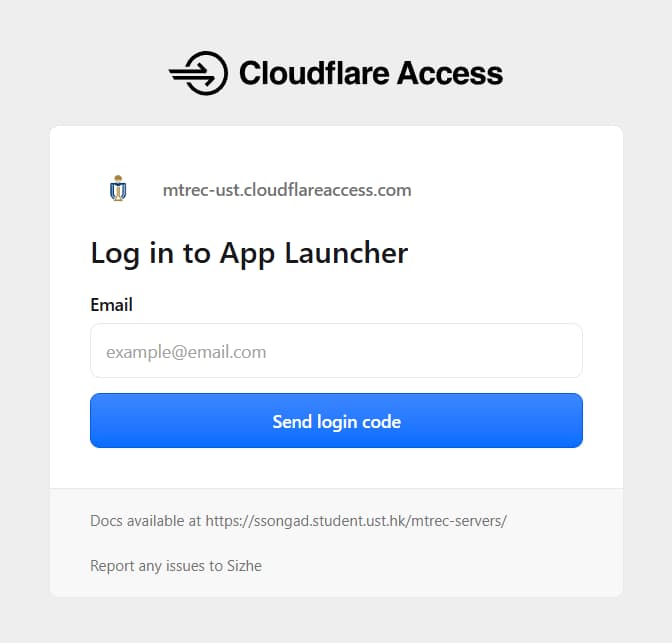
Then input your username and password to use the terminal.
5.3 VSCode (through Cloudflare)
1. Install cloudflared binary file on your own machine: Windows, Linux, MacOS. Then call cloudflared in your terminal. If it says something like "command not found", then the installation was not successful. You should try 1) reintall, 2) reboot, 3) add the binary to your PATH.
2. Add the following configuration to your SSH config file, usually it is located at ~/.ssh/config:
text
Host mtrec-4090d-1-cf
  HostName mtrec-4090d-1.mtrec.xyz
  User ssongad
  ProxyCommand cloudflared.exe access ssh --hostname %h
Replace the config name, username as needed. The hostname is just the same to cloudflare web terminal. If you are using MacOS or Linux, you also need to remove .exe in the last line.
3. In your terminal, call ssh mtrec-4090d-1-cf to test if the configuration is fine, it may ask for your email verification again. If you can connect to the remote machine, then you are all set. Go ahead and access the machine in VSCode.
5.4 rclone
rclone is a CLI tool to manage cloud drives. This allows us to manage cloud files directly on remote machines. With a cloud drive, such as HKUST 5TB OneDrive, you can transfer files easily between any of our machines.
1. Download and extract the binary on both the server and a local machine (with monitor and browser). Use the same version on both machines.
2. Set up the account on the server:
bash
rclone configThis will start an interactive session. Below is an example to add OneDrive:
text
  e) Edit existing remote
  n) New remote
  d) Delete remote
  r) Rename remote
  c) Copy remote
  s) Set configuration password
  q) Quit config
  e/n/d/r/c/s/q> n

  Enter name for new remote.
  name> od (#Give it a name)

  Choose a number from below, or type in your own value.
  ...
  Storage> 35 (#Choose the number for OneDrive)

  Option client_id.
  OAuth Client Id.
  Leave blank normally.
  Enter a value. Press Enter to leave empty.
  client_id> (#Just press enter, leave it empty)

  Option client_secret.
  OAuth Client Secret.
  Leave blank normally.
  Enter a value. Press Enter to leave empty.
  client_secret> (#Just press enter, leave it empty)

  Option region.
  Choose national cloud region for OneDrive.
  Choose a number from below, or type in your own string value.
  Press Enter for the default (global).
  1 / Microsoft Cloud Global
    \ (global)
  2 / Microsoft Cloud for US Government
    \ (us)
  3 / Microsoft Cloud Germany
    \ (de)
  4 / Azure and Office 365 operated by Vnet Group in China
    \ (cn)
  region> 1 (#Choose global)

  Edit advanced config?
  y) Yes
  n) No (default)
  y/n> (#Just press enter, use default)

  Use web browser to automatically authenticate rclone with remote?
  * Say Y if the machine running rclone has a web browser you can use
  * Say N if running rclone on a (remote) machine without web browser access
  If not sure try Y. If Y failed, try N.

  y) Yes (default)
  n) No
  y/n> n (#Choose no, use our local machine to finish authentication)

  Option config_token.
  For this to work, you will need rclone available on a machine that has
  a web browser available.
  For more help and alternate methods see: https://rclone.org/remote_setup/
  Execute the following on the machine with the web browser (same rclone
  version recommended):
          rclone authorize "onedrive"
  Then paste the result.
  Enter a value.
  config_token>
Now, we will copy and run the command above on our local machine, it will prompt you to a browser authentication. After the authentication, copy and token in our local terminal to the remote terminal.
text
  Option config_type.
  Type of connection
  Choose a number from below, or type in an existing value of type string.
  Press Enter for the default (onedrive).
   1 / OneDrive Personal or Business
     \ (onedrive)
   2 / Root Sharepoint site
     \ (sharepoint)
     / Sharepoint site name or URL
   3 | E.g. mysite or https://contoso.sharepoint.com/sites/mysite
     \ (url)
   4 / Search for a Sharepoint site
     \ (search)
   5 / Type in driveID (advanced)
     \ (driveid)
   6 / Type in SiteID (advanced)
     \ (siteid)
     / Sharepoint server-relative path (advanced)
   7 | E.g. /teams/hr
     \ (path)
  config_type> 1 (#Choose OneDrive)

  Option config_driveid.
  Select drive you want to use
  Choose a number from below, or type in your own value of type string.
  Press Enter for the default (SOME_TOKEN_HERE).
  1 / OneDrive (business)
    \ (SOME_TOKEN_HERE)
  config_driveid> 1 (#Choose the drive)

  Drive OK?

  Found drive "root" of type "business"
  URL: https://SOME_URL_HERE

  y) Yes (default)
  n) No
  y/n> (#Just press enter, use default)

  Configuration complete.
  Options:
  - type: onedrive
  - token: SOME_TOKEN_HERE
  - drive_id: SOME_TOKEN_HERE
  - drive_type: business
  Keep this "temp" remote?
  y) Yes this is OK (default)
  e) Edit this remote
  d) Delete this remote
  y/e/d> (#Just press enter, use default)
Now we can start using rclone. To list a path:
bash
rclone lsf <remote_name>:<remote_path>bash
rclone lsf "od:Recent/Hello World" #List the directory "Recent/Hello World" in the onedriveTo download a file:
bash
rclone copy <remote_name>:<remote_path> <local_path> -Pbash
rclone copy od:Workspace/data.zip ./datasets -P #Download "data.zip" from onedrive to local folder "datasets"To upload a file:
bash
rclone copy <local_path> <remote_name>:<remote_path> -Pbash
rclone copy ./datasets/data.zip od:Workspace -P #Upload "data.zip" from local folder "datasets" to onedrive folder "Workspace"To list or download a file shared to us in google drive, add the flag --drive-shared-with-me:
bash
rclone lsf gd: --drive-shared-with-me #List all files shared to us in google drivebash
rclone copy gd:dataset.zip --drive-shared-with-me ./ -P #Download a "dataset.zip" shared to us in google drivePlease read the official docs for more use cases.
5.5 VSCode Tunnel
VSCode Tunnel is a free tunneling service provided by Microsoft, it has: 1) almost unlimited tunnels (fair use), 2) almost unlimited data (fair use), 3) no need for credit card (use GitHub/Microsoft account). Since we now have Cloudflare, this method is no longer helpful, but I will leave the instruction here for your reference. You may still need it in two scenarios: 1) to use VSCode web, especially when you are working on a public computer, 2) to debug on a cluster node (e.g. HPC4 / SuperPOD).
1. download the package:
bash
curl -Lk 'https://code.visualstudio.com/sha/download?build=stable&os=cli-alpine-x64' --output vscode_cli.tar.gz2. Extract the binary:
bash
tar -xf vscode_cli.tar.gz3. Run the tunnel:
bash
./code tunnelThen it will prompt us to login with either GitHub or Microsoft account, this is only required at the first time. After the tunnel is online, install the official extension "Remote - Tunnels" in VScode, and login using the same account. Then we can find all the tunnels in the "Remote Explorer" tab, the same tab where we do ssh connection. This tunnel also runs in the foreground, so we can put it inside a tmux or screen session.
Known Issue: If there is an modification on any of the environment variables, we need to restart the tunnel as well as the session (ssh/tmux/screen) so that the modification can take effect. Also, if anything strange happens, try restart first.